
Traditional passwords remain the single greatest security liability on personal computers. Data breaches, credential stuffing lists, and deceptive phishing websites compromise millions of user accounts every year. Learning how to use passkeys on windows 11 gives you an unphishable, cryptographic authentication method that replaces vulnerable passwords with your biometric face, fingerprint, or local PIN.
Backed by the universal FIDO Alliance standards, passkeys rely on public-private key cryptography. Your private key stays safely locked inside your computer’s TPM 2.0 security chip, ensuring no server or fake website can ever steal your secret credentials.
Looking to strengthen your overall workstation defenses? Check out our guides on resolving Windows 11 network and DNS problems or explore our complete library of security tutorials.
Passkeys vs Traditional Passwords: What Changes?
| Feature | Traditional Passwords | FIDO2 Passkeys |
|---|---|---|
| Storage Location | Stored on remote corporate servers (vulnerable to leaks). | Stored locally in hardware TPM 2.0 chip. |
| Phishing Resistance | High Risk (can be entered into fake clone sites). | 100% Immune (bound strictly to domain origin). |
| Two-Factor Needed? | Yes, external SMS or authenticator apps needed. | No, strong 2FA is built into the device unlock. |
| Memorization | Requires complex strings or password vaults. | Zero memorization; unlocked via Windows Hello. |
Step 1: Configure Windows Hello on Windows 11
Before you can generate credentials and use passkeys on windows 11, your system requires an active Windows Hello authentication method. Windows Hello serves as the master gatekeeper that authorizes your private cryptographic key whenever a website requests login verification.
Follow these quick steps to verify your configuration:
- Open the Settings app on Windows 11 by pressing Windows Key + I.
- In the left-hand navigation pane, select Accounts.
- Click on Sign-in options.
- Ensure that at least one of the following methods is configured: Facial recognition (Windows Hello), Fingerprint recognition (Windows Hello), or PIN (Windows Hello).
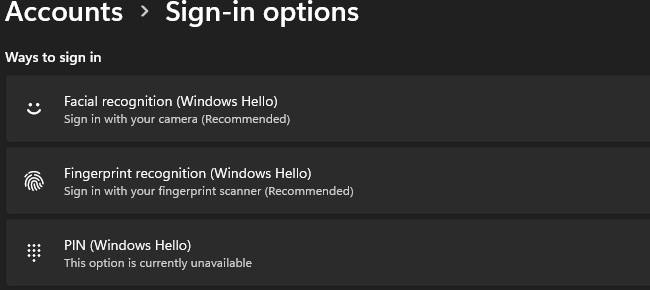
Security Tip: You do not need expensive biometric hardware to use passkeys. A simple 6-digit Windows Hello PIN is cryptographically tied to your specific motherboard TPM and provides enterprise-grade authentication.
Step 2: Create and Save Your First Passkey in a Browser
Major web platforms such as Google, Microsoft, Amazon, and GitHub now allow users to generate passkeys directly inside Windows 11 through modern Chromium browsers (Microsoft Edge, Google Chrome, Brave) or Mozilla Firefox.
To register a new passkey:
- Navigate to your account security dashboard (for example, your Google Account Security tab).
- Select Passkeys and security keys, then click Create a passkey.
- A native Windows system dialog will prompt: “Create a passkey for [website.com]”.
- Confirm with your Windows Hello biometric scan or PIN.
Consequently, Windows 11 generates a secure public-private keypair. The public key is sent to the website, while your private key is permanently secured in your local Windows Vault.
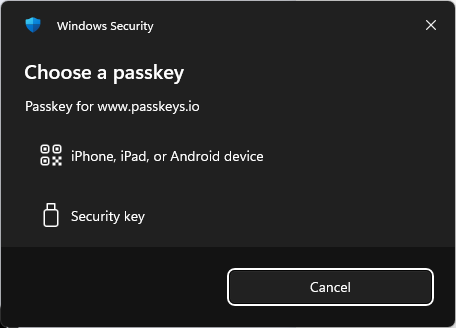
When authenticating or registering, the native Windows Security system dialog appears on screen, prompting you to choose your credential storage or authorize with a paired phone:
Step 3: Manage Saved Credentials in the Windows 11 Passkey Manager
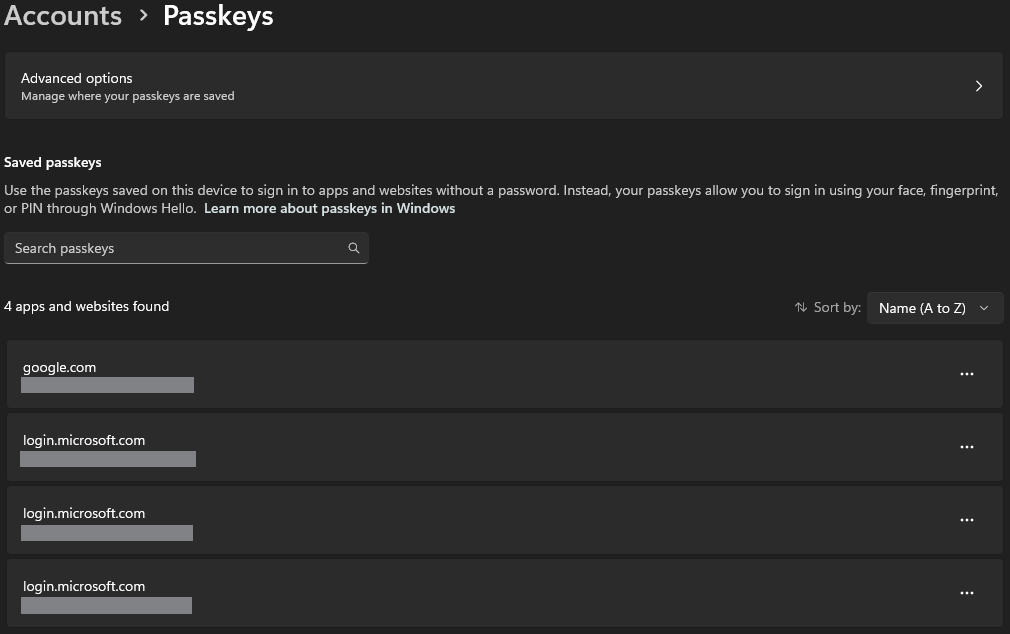
Microsoft introduced a dedicated Passkey Manager in Windows 11 (versions 23H2 and 24H2) that centralizes credential administration in one location. This dashboard allows you to view which websites have registered keys and delete legacy accounts.
To access the manager:
- Press Windows Key + I to open Settings.
- Navigate to Accounts and select Passkeys.
- Review your saved passkeys listed by website domain and username.
- Click the three dots next to any account if you need to revoke or delete an unused credential.
Step 4: Cross-Device Sign-in (Using Android or iPhone)
What happens if you need to log into a shared or temporary PC where your passkey is not saved? Windows 11 supports cross-device hybrid authentication over Bluetooth. When signing in, choose Use a phone or tablet.
A dynamic QR code appears on your Windows 11 screen. Scan the code with your phone’s camera, confirm the Bluetooth proximity handshake, and approve the biometric prompt on your mobile device to log into Windows instantly.
Frequently Asked Questions (FAQ)
Can websites or online services steal my biometric fingerprint data?
No. Under the FIDO2 and WebAuthn specifications, websites never receive your biometric data, facial scan, or PIN. Your computer verifies your identity locally inside the hardware TPM, and transmits only an encrypted cryptographic signature to the server.
Can passkeys on Windows 11 be phished by fraudulent login pages?
No. Passkeys are mathematically bound to the exact origin domain registered in your browser (e.g., google.com). If an attacker lures you to a lookalike phishing domain (e.g., g00gle-login.com), Windows recognizes the cryptographic mismatch and will refuse to supply the passkey.
Conclusion and Next Steps
Taking the time to use passkeys on windows 11 transforms your cybersecurity posture from reactive password resets to unbreachable hardware-backed authentication. By pairing Windows Hello with WebAuthn credentials, you eliminate the threat of data breaches and credential theft.
For additional IT guides, explore our PC & Mac Guides, review our Ubuntu server hardening checklist for backend systems, or connect with our security analysts on the Contact Us page.